
Creating a football club logo and adding it to your team’s website is a very simple task. Nowadays, artificial intelligence does the heaviest work; we just need to arrange it properly. But where to start?
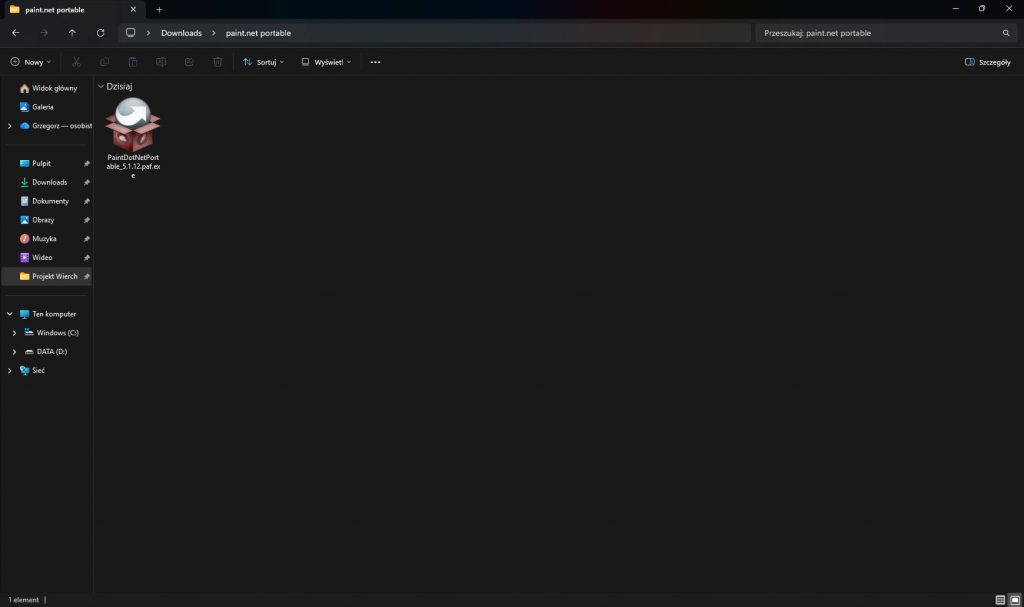
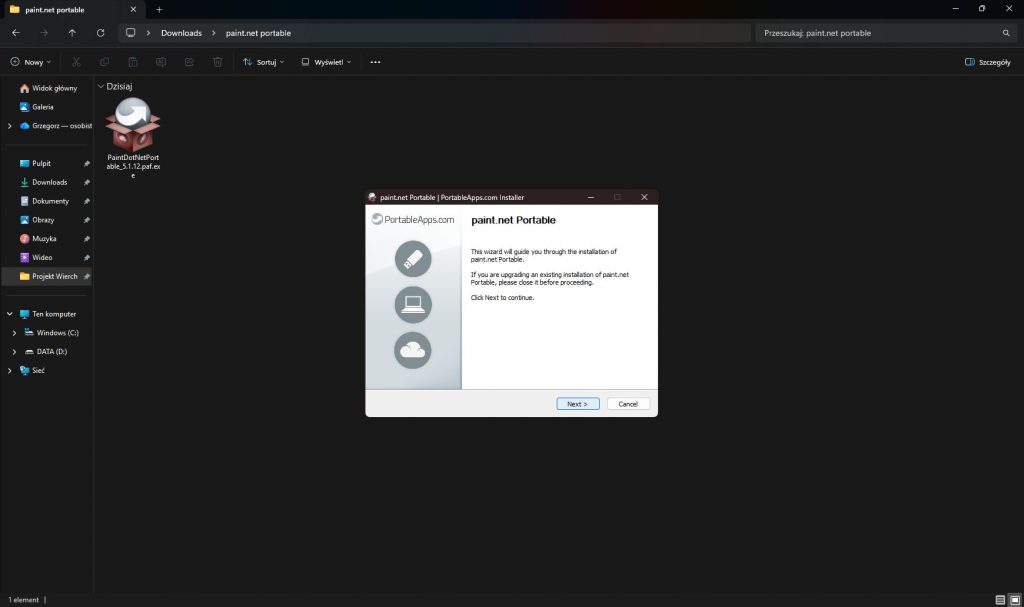
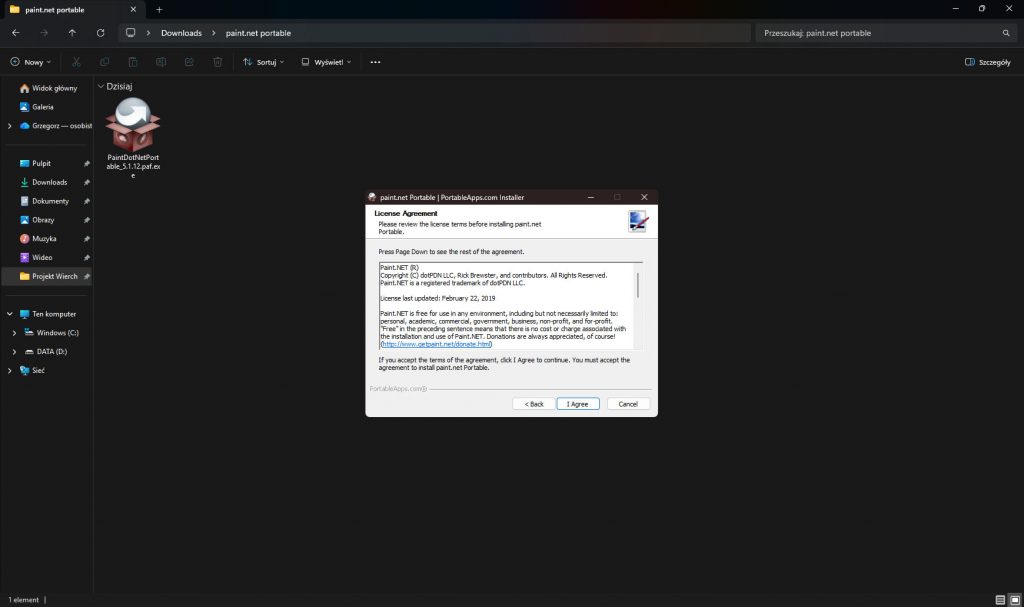
First, let’s download the completely free paint.net portable program from https://portableapps.com/apps/graphics_pictures/paintdotnet-portable
The portable version is highly advantageous as it does not require installation on the operating system. You can run it directly from a USB drive or a specific folder, keeping your system registry clean and allowing you to use your personalized editor on any computer.

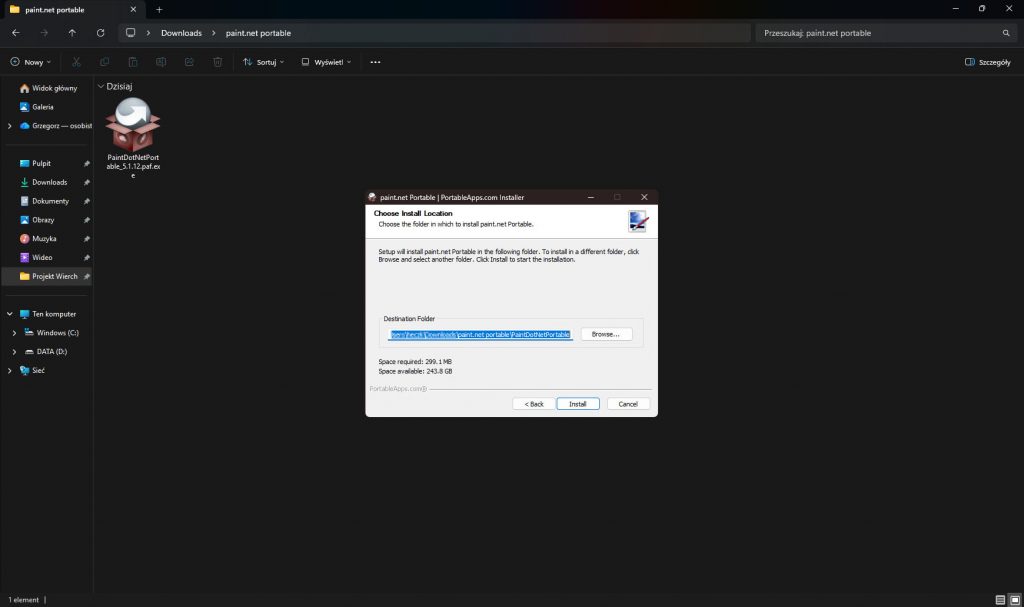
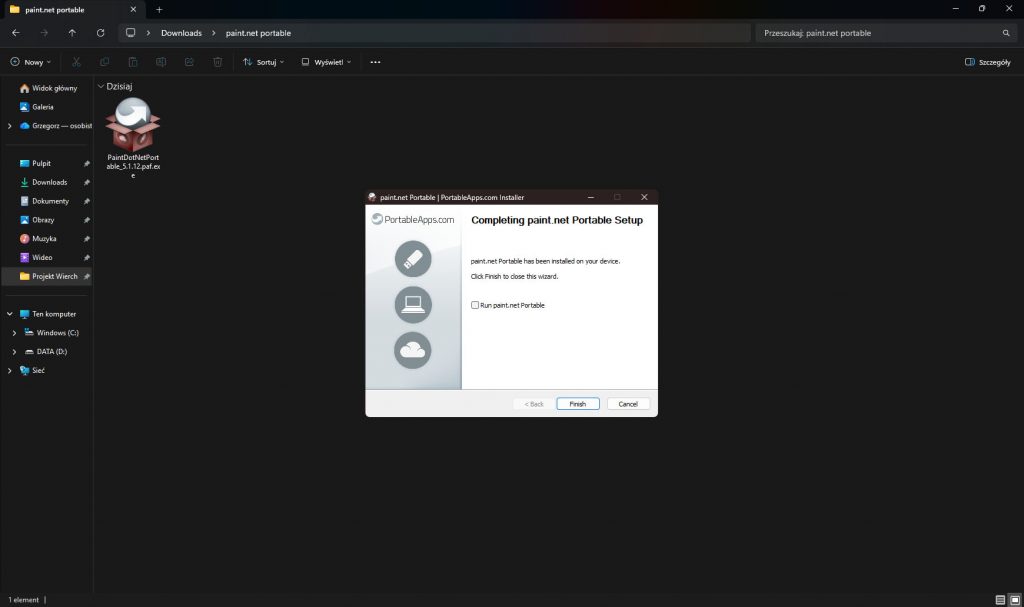
The next step is to create a nice logo, which is best done using Google Gemini at https://gemini.google.com
The Gemini engine, powered by advanced models like Nano and others, excels in processing complex textual instructions. It understands context exceptionally well, ensuring that the text integrated into the graphics – such as your club’s name – is rendered with high precision and stylistic consistency.
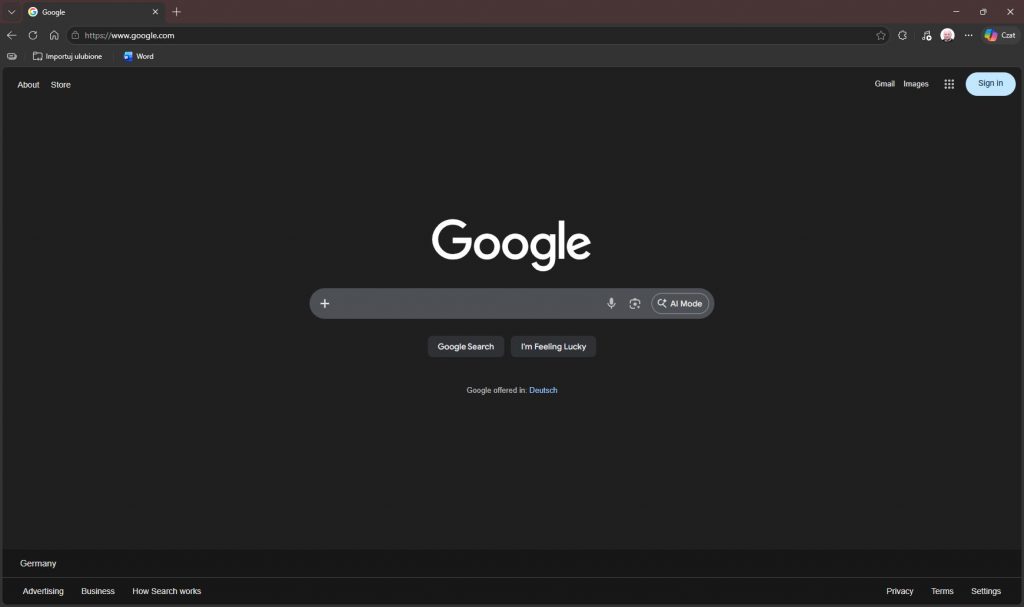
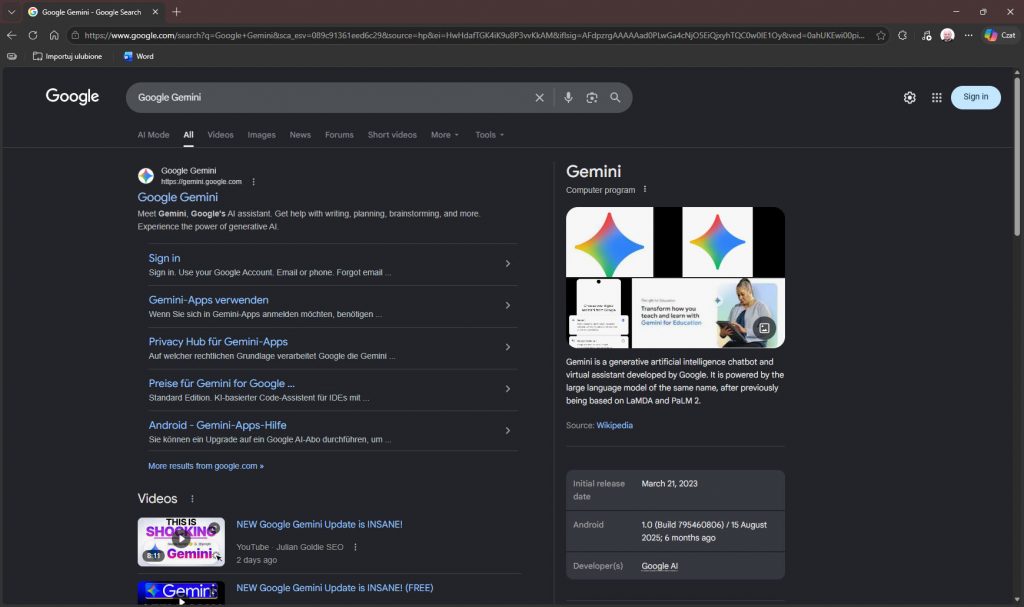
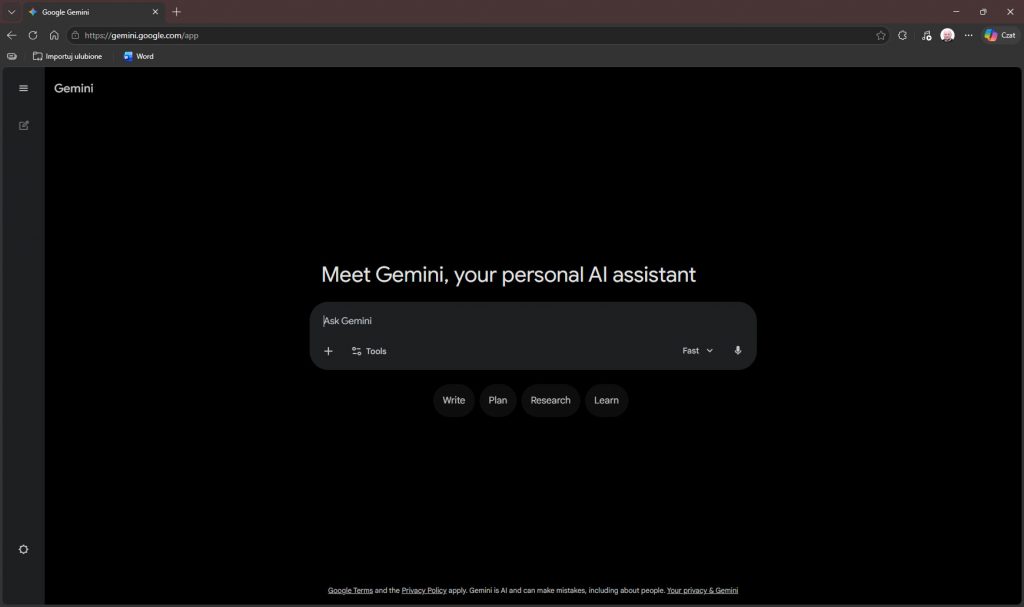
We type the command for the AI into the chat window. It must necessarily start with “Create an image“. Then, in the simplest words, we describe what we want to achieve “I need help with logo for my football team called ‘Hattrick United’. My idea was a gold winged fish on a white and forest green background. Regarding the name ‘Hattrick United’“.
To receive several interesting proposals, let’s add this command “I’m open to suggestions. Create six different ones to choose from“.
At the very end, there must be the most important piece of information, which will make later work easy and pleasant “On a solid white background without shadows or gradients“.
So, the entire query sounds like this “Create an image. I need help with logo for my football team called ‘Hattrick United’. My idea was a gold winged fish on a white and forest green background. Regarding the name ‘Hattrick United’. I’m open to suggestions. Create six different ones to choose from. On a solid white background without shadows or gradients.“
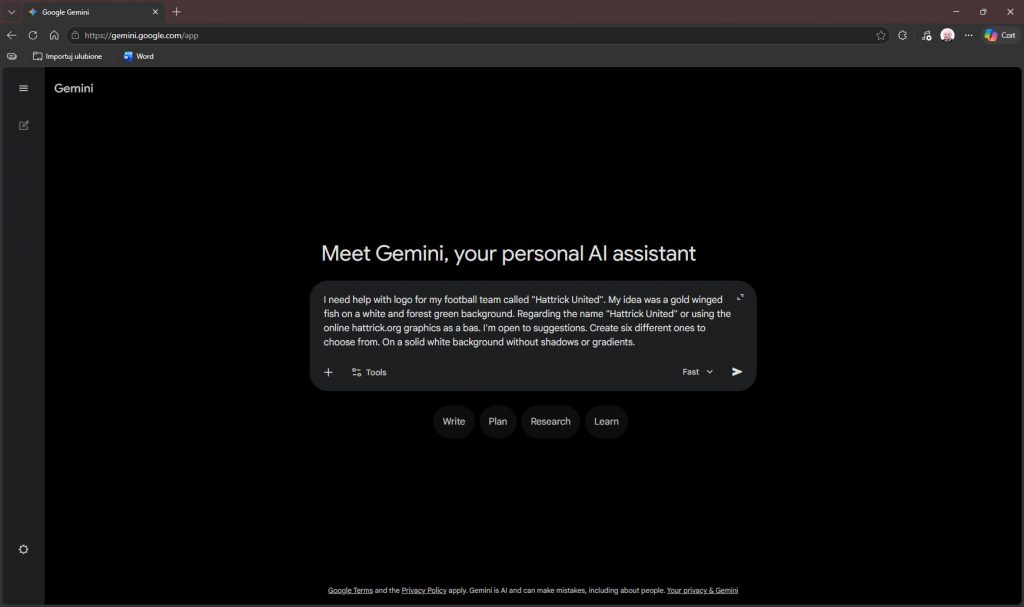
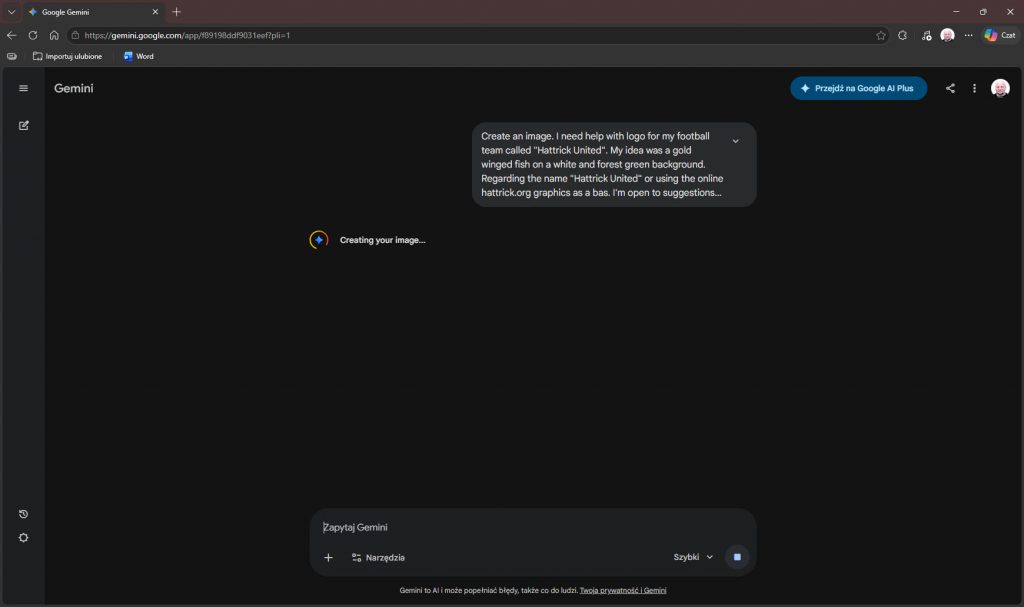
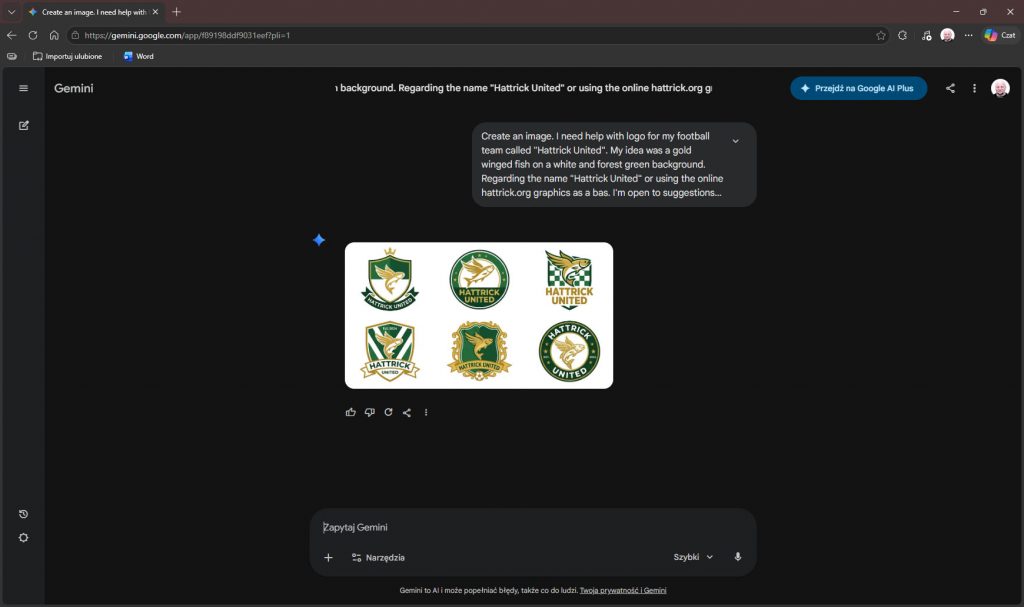
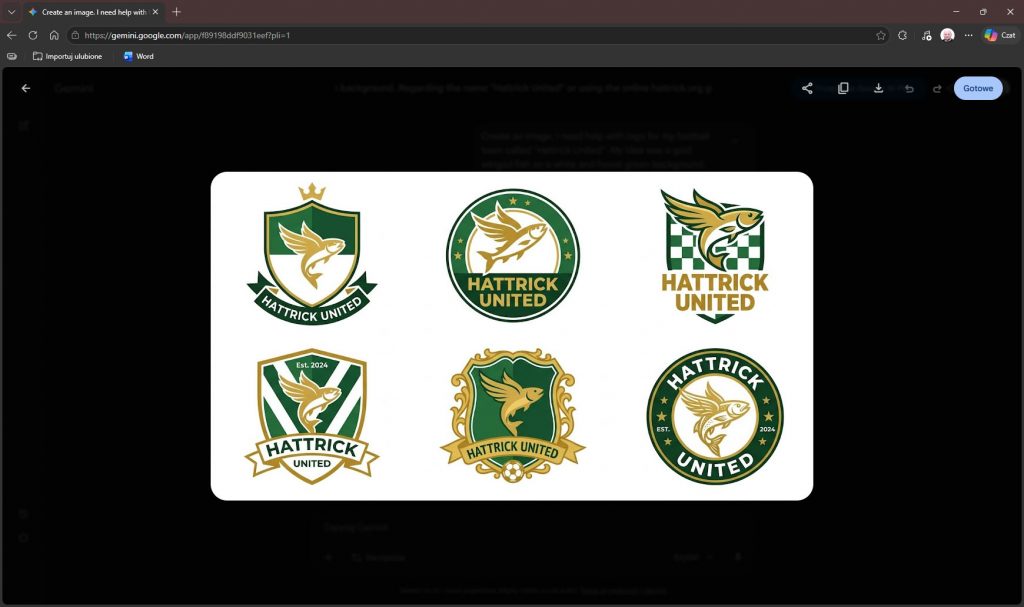
After downloading the graphic, we launch the previously installed paint.net portable program and perform a few simple steps to remove the background and cut out the logo we are interested in. Remember that Hattrick needs a graphic file in specific proportions: 210 x 260.
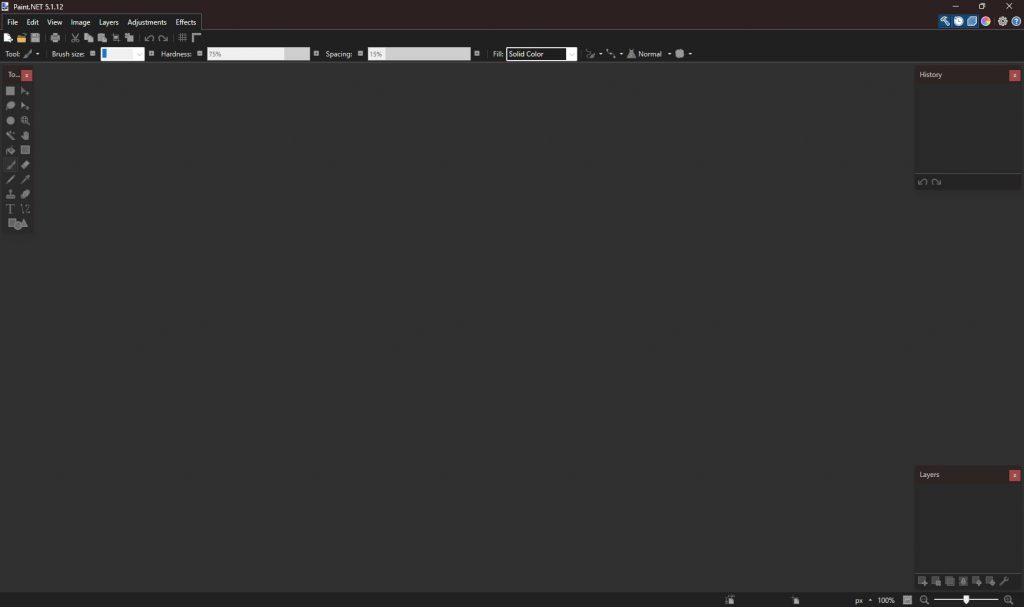
Open the program.
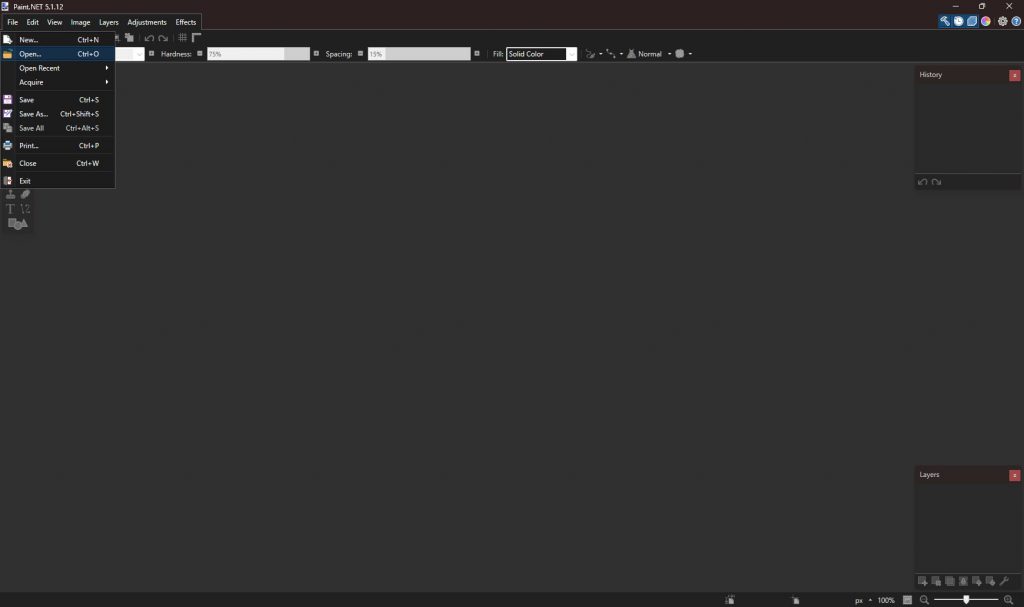
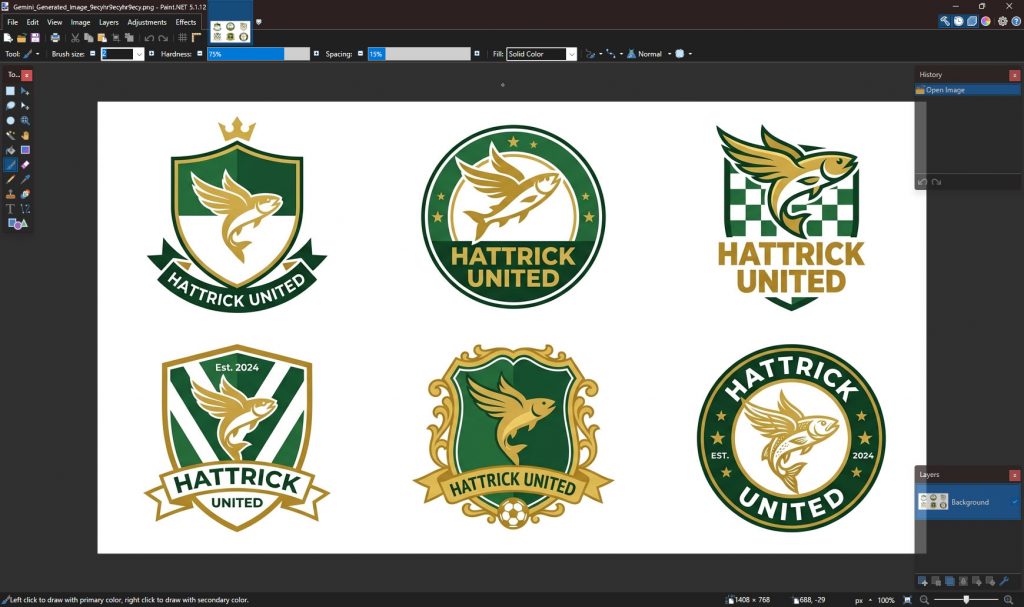
Open the logo file.
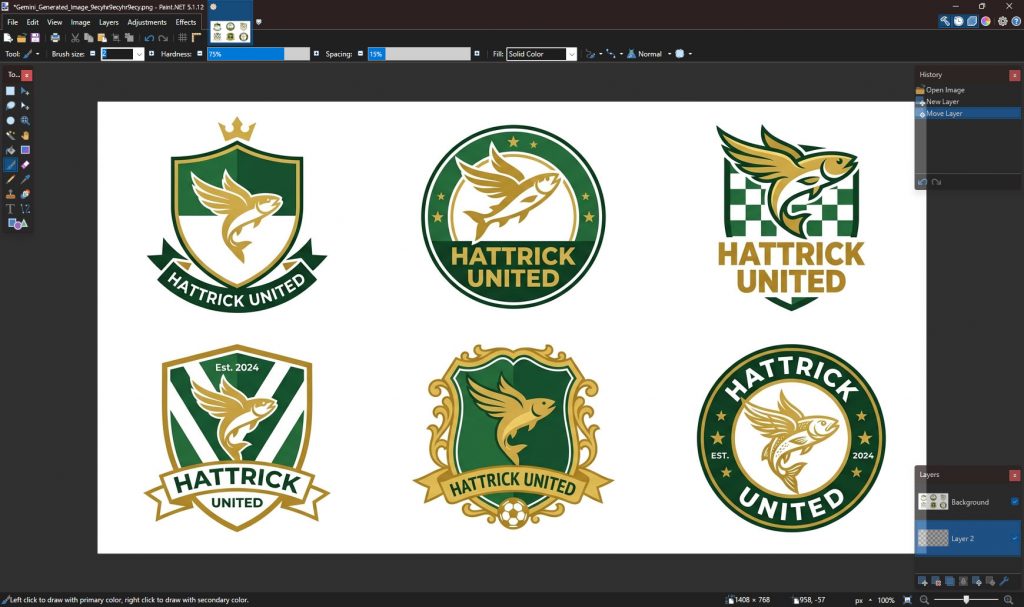
Create a new, transparent layer in the lower right corner.
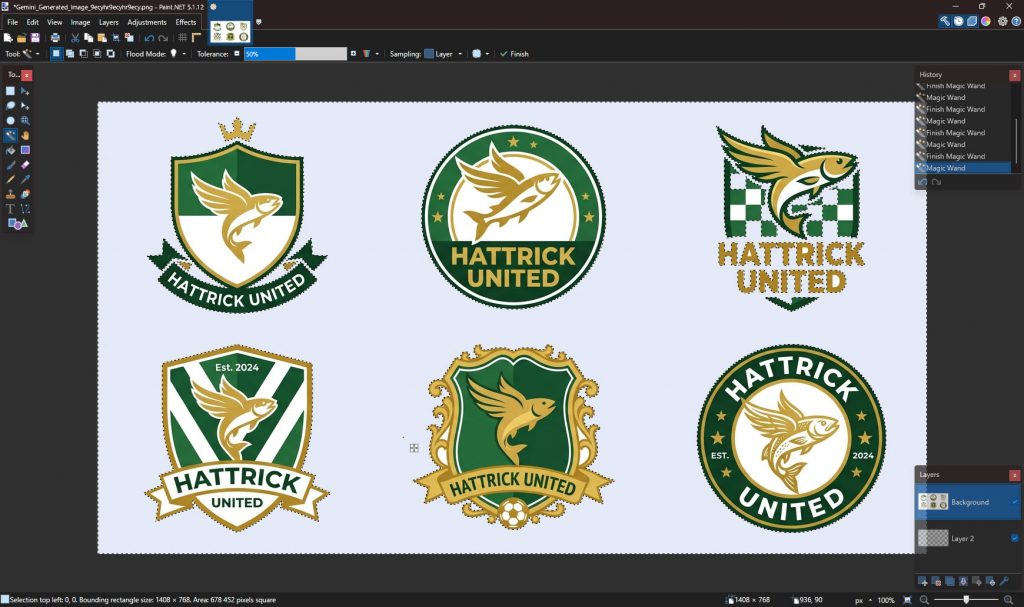
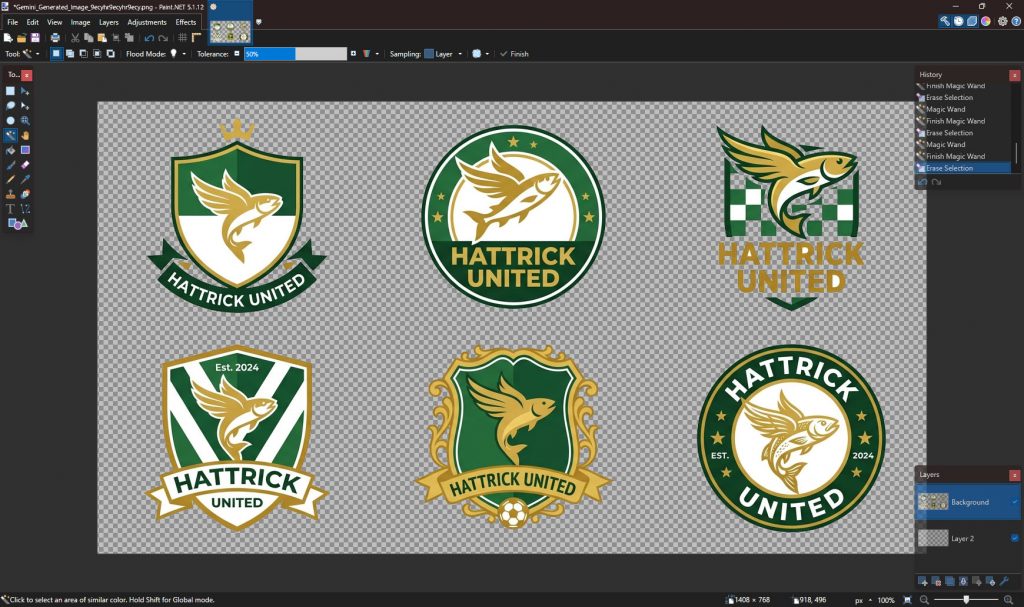
Select the ‘Magic Wand‘ tool, click on the background on the first layer, and remove it using the ‘Delete‘ key.
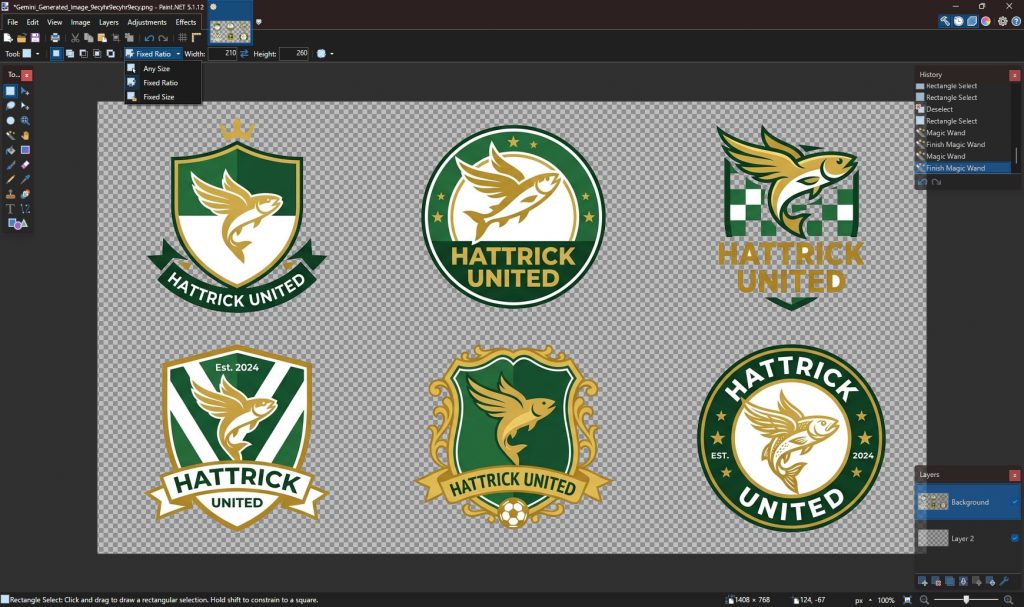
Select the selection tool and set ‘Fixed Ratio‘ to 210 x 260.
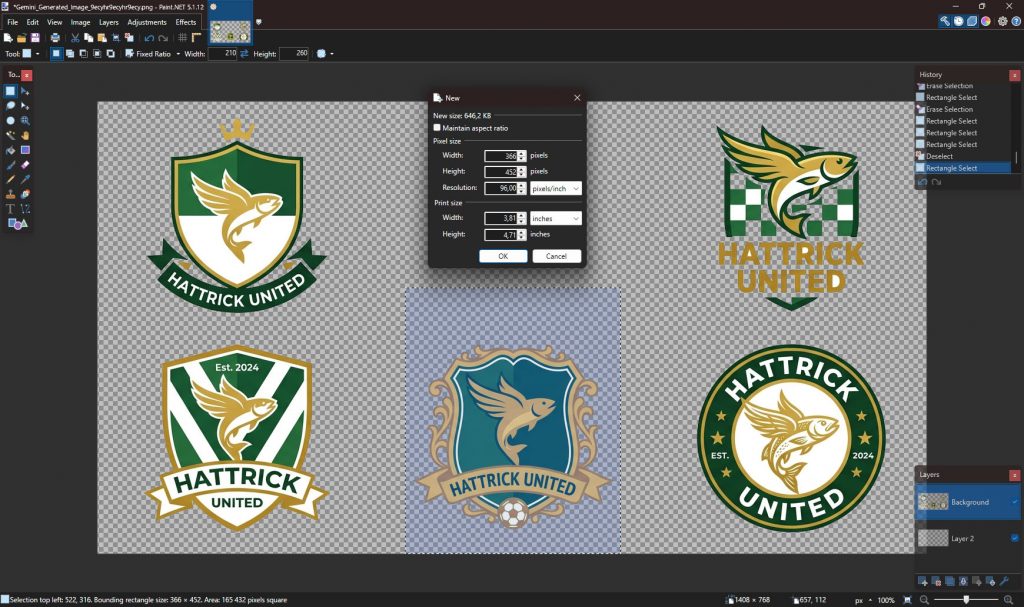
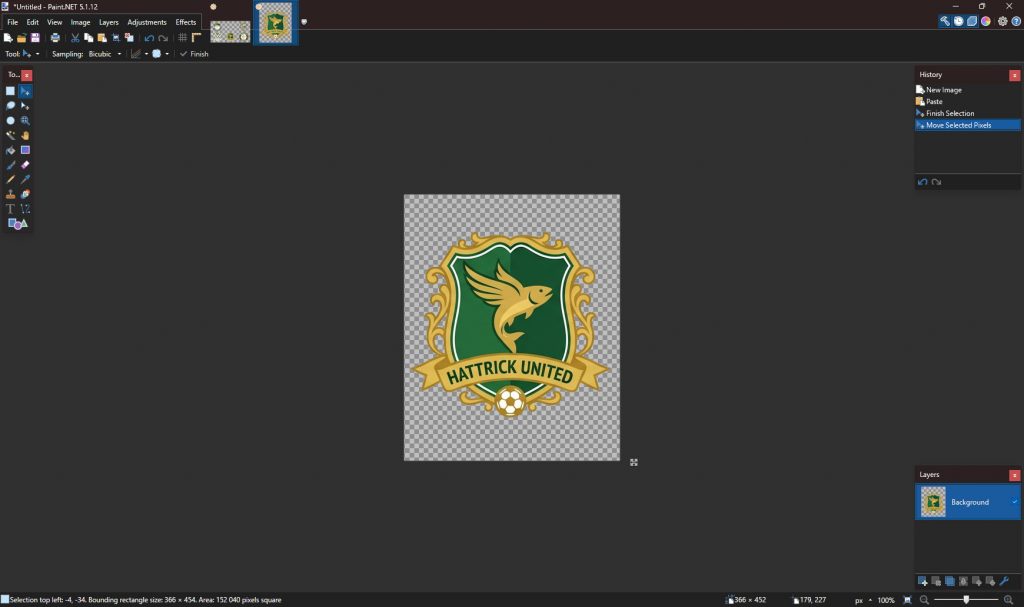
Select the logo you are interested in and copy it with ‘Ctrl+C‘. Then open a new document with ‘Ctrl+N‘ and paste the cut-out logo with ‘Ctrl+V‘. If the logo is not centered, you can adjust it by moving it with the LMB (left mouse button).
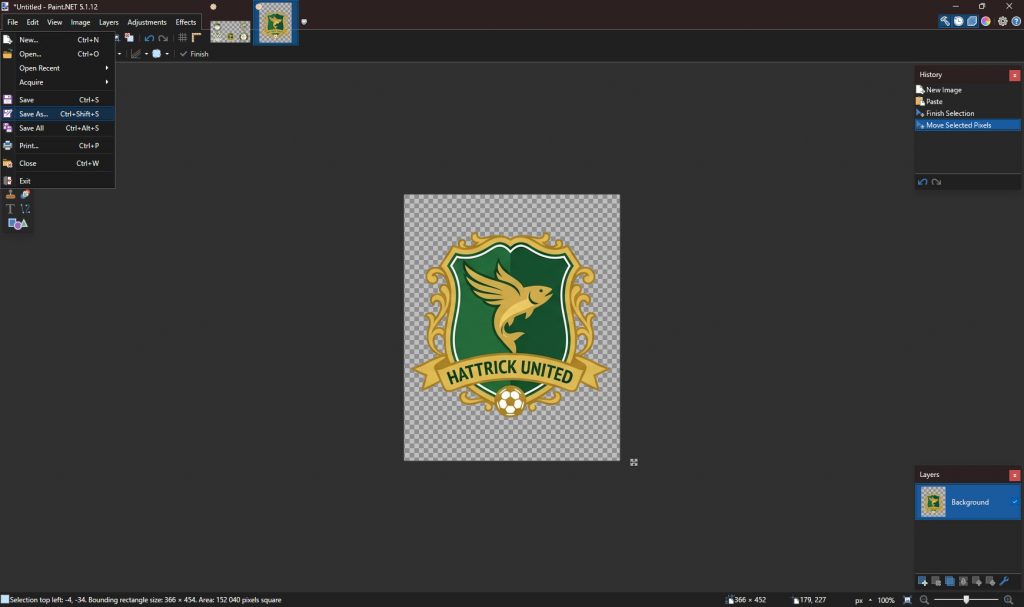
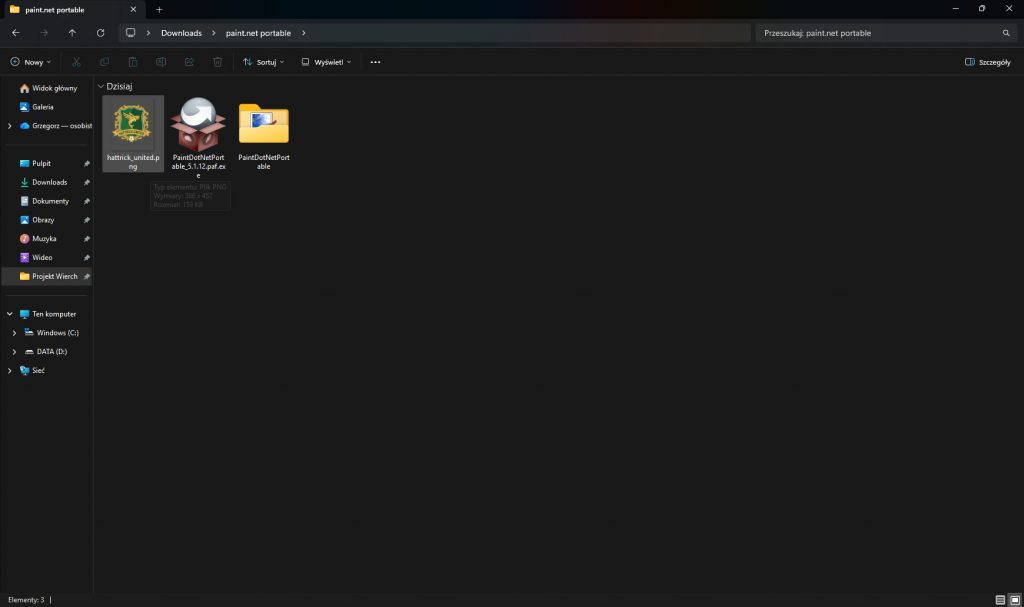
Save the finished image using ‘Save as‘ and choose the PNG file format to maintain the transparent background.
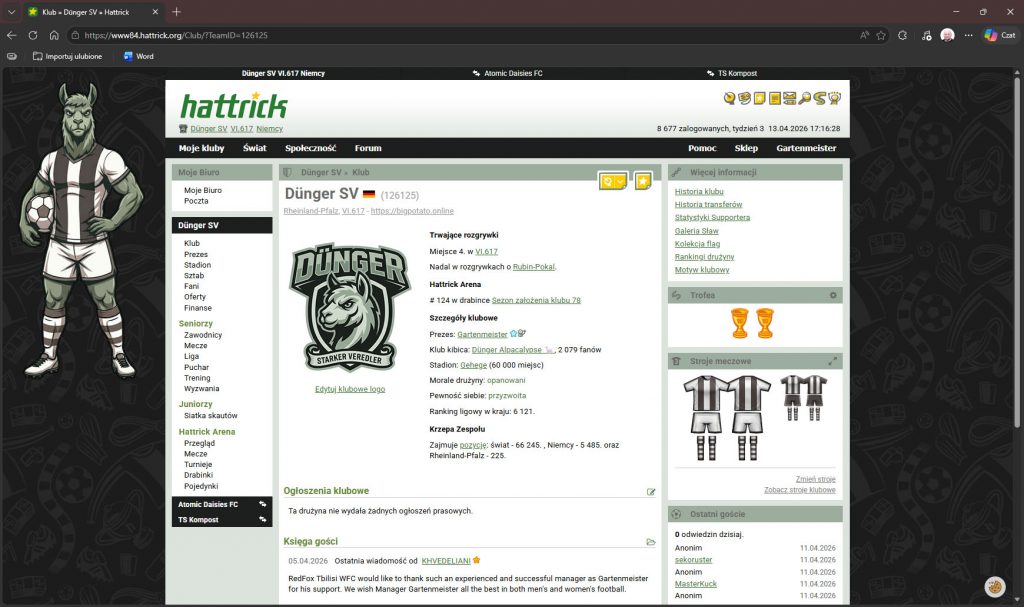
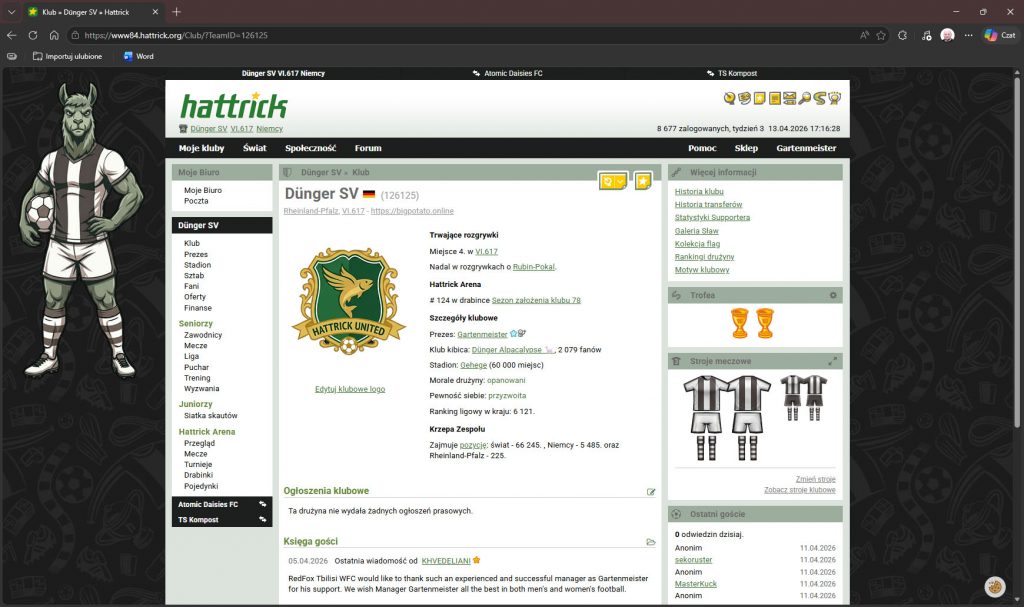
The last thing we need to do is replace the old logo with the new one on our club website at https://www.hattrick.org